How to mute your microphone with a shortcut on a Mac
Short answer: Each call app has its own mute shortcut: ⇧⌘A in Zoom, ⇧⌘M in Teams and ⌘D in Google Meet. macOS has no shortcut that mutes the microphone in every app. You can drag the input volume to zero in Sound settings, or use Earmix, which we make, where ⌃⌥⇧A mutes your mic everywhere.
Mute shortcuts in each call app
Every call app has a mute button and a keyboard shortcut for it. These are the standard ones:
| App | Mute shortcut |
|---|---|
| Zoom | ⇧⌘A |
| Microsoft Teams | ⇧⌘M |
| Google Meet | ⌘D |
They're fine if you only use one app. The catch is that each one only mutes that app. If you switch from Zoom to a Teams call, the key changes. A Slack huddle, a Discord chat or a browser call all have their own buttons again.
Mute the mic for every app in Sound settings
macOS doesn't have a mute button for the microphone, but you can turn its level down to nothing:
- Open System Settings › Sound.
- Click Input and select your microphone.
- Drag Input volume all the way to the left.
Every app now gets silence from that mic. It works, but it's slow during a call, there's no shortcut for it, and nothing on screen reminds you that you're muted. To unmute, you drag the slider back and try to find the level you had before.
One shortcut that mutes your mic in all apps
Earmix adds a single shortcut for the microphone: ⌃⌥⇧A. Press it and your mic is muted in every app at once, whatever app is in front. Press it again to unmute.
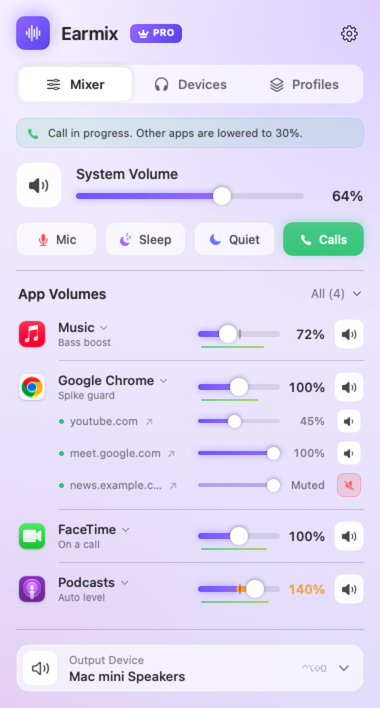
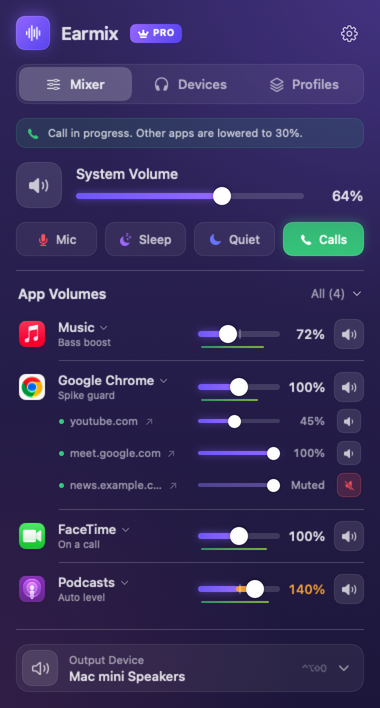
- A red dot in the menu bar shows the mic is muted, so you always know.
- It stays muted when the input changes. Put in AirPods or plug in a headset, and you're still muted.
- A heads-up if a call starts while you're muted, so you don't talk to nobody for the first minute.
- It mutes the default input, the mic chosen in Sound settings, so it covers Zoom, Teams, Meet in the browser, FaceTime and anything else using that mic.
Other ways to mute
Earmix's mic mute can also be triggered without the keyboard:
- From your iPhone. Earmix for iPhone can mute the Mac's mic from the Lock Screen, Control Center or the Action button. It's free with Earmix, but it's a TestFlight beta for now: email support@earmix.app to join. See how to control your Mac's volume from your iPhone.
- From Shortcuts, Siri, Raycast or a Stream Deck. Earmix has actions for each, and an
earmix://miclink you can use anywhere a link works.
Pair it with call ducking
While an app uses the microphone, Earmix also lowers every other app to 30% and brings them back when the call ends. That way your music doesn't play over the call, and you can mute and unmute with one key. See how to lower music during calls. If you record the call, see how to record a Zoom call on a Mac.
Questions
What is the shortcut to mute the mic on a Mac?
macOS has no built-in mic mute shortcut. Call apps have their own: ⇧⌘A in Zoom, ⇧⌘M in Teams and ⌘D in Google Meet. Earmix adds ⌃⌥⇧A, which mutes the mic in every app.
How do I mute my microphone in all apps on a Mac?
Drag Input volume to the left in System Settings › Sound › Input, or use Earmix's ⌃⌥⇧A shortcut, which mutes the default input for every app and shows a red dot in the menu bar.
Does muting in Earmix stay on when I switch to AirPods?
Yes. Earmix keeps the mic muted when the input changes, so a new headset or AirPods stay muted until you unmute.
Can I mute my Mac's microphone from my iPhone?
Yes, with Earmix for iPhone, which is free with Earmix and in beta on TestFlight. You can mute from the Lock Screen, Control Center or the Action button.
Try Earmix free for 14 days
Every feature, with no account and no card. Then $12.99 once at the early-bird price (regularly $49), with a 14-day refund. For macOS 14.2 or later, on Apple silicon and Intel.
Download Earmix